
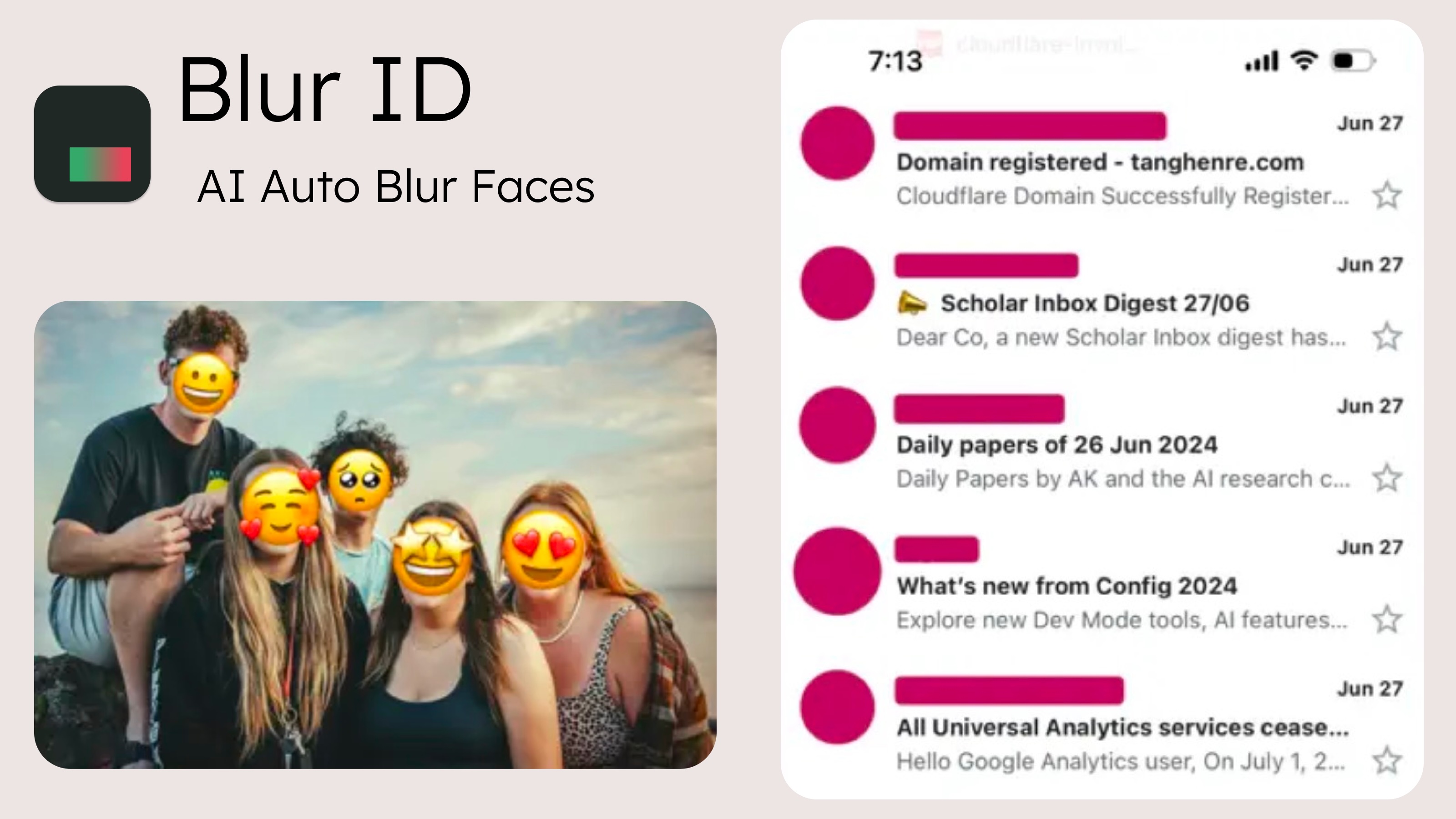
Blur ID covers the numbers on a photo of an ID with an opaque block without uploading the photo: in its iPhone app, and in a free tool that runs in the browser. Markup, already on every iPhone, does the same by hand. Desktop tools and other websites are compared too.
What to hide on an ID
Start with the recipient, not the card. Ask which fields they will check, leave those readable, and cover the rest.
- The document or licence number.
- Date of birth and address, unless they were asked for.
- The signature.
- Barcodes, QR codes and the machine-readable lines on a passport.
- The portrait, when the recipient only needs a number or a name.
The field-by-field version is in the guide to redacting an ID card.
Five ways compared
| Method | Where | Finds the fields for you? | The cover | Is the photo uploaded? | Cost |
|---|---|---|---|---|---|
| Markup, filled shapes | iPhone, iPad | No | A shape with a fill colour, at full opacity | No. It is the Photos editor | Included |
| Blur ID iPhone app, solid colour style | iPhone, iOS 17 or later | Yes: text lines, the portrait, barcodes and QR codes | A flat block in the colour you pick | No. Works in airplane mode | Free with a small “via Blur ID” watermark; Premium removes it for US$0.99 a month, US$4.99 a year or US$7.99 once |
| Preview, Acrobat Pro, Snagit | A computer | No | Redaction of PDF text (Preview, Acrobat Pro); solid shapes on images (Snagit) | Desktop apps | Preview is part of macOS; Acrobat Pro and Snagit are sold separately, prices not checked |
| An upload-based website | Browser | Varies | Varies | Yes, unless the site says otherwise | Varies |
1. iPhone Markup with filled shapes
- Open the photo in Photos and tap Edit.
- Tap Markup, then Add, then Add Shape, and pick the rectangle.
- Set a fill colour and keep the opacity at full.
- Drag and resize the shape over one field, and repeat for the others. Tap Done.
Do not rely on the highlighter or a quick scribble. Two things from Apple's guide: Photos keeps the original (Revert to Original brings it back on your device), and AirDrop's Options screen has an All Photos Data switch that sends “the original file with edit history”. Leave it off.
2. The Blur ID iPhone app, solid colour style (made by the publisher of this page)
- Open the photo of the ID in Blur ID.
- It reads and outlines every line of text on the phone, marks the lines that look like names, addresses, ID numbers or card numbers, and detects the portrait and any barcode or QR code.
- Switch from the default immersive style to solid colour and pick a colour.
- Tap a marked field to keep it visible if the recipient needs it. Tap any other outlined line to hide it, and drop a preset shape over the signature.
- Export. The result is a flattened image; the covered pixels are not in the file.
The classifier is tuned for English and Chinese, so on an ID in another language you will tap more lines yourself. Free exports carry a small “via Blur ID” watermark and are saved at reduced resolution; if the recipient must read small print, check the export.
3. On a computer: Preview, Acrobat Pro or Snagit
For a PDF on a Mac, Preview's Redaction Selection tool removes the text you select; Apple notes the redaction is permanent once you close the document. Adobe says the Redact tool in Acrobat Pro removes items permanently once the document is saved. In Snagit, TechSmith recommends the Solid shapes type for confidential information and tells you to flatten the image before sharing.
4. Other websites: read what happens to the file first
A website that processes images on its server receives a clean copy of your ID. Some say they do not work that way: redact.photo states that all editing happens in the browser and that it uploads no data. We have not audited that, and its effect is a blur, not a block.
Why a block and not a blur
A blur or a mosaic still carries information about what is underneath. Bishop Fox published a tool that reverses pixelated text and concluded that text should be covered with solid bars; TechSmith's Snagit documentation warns that blur and pixelation can be reversed.
When to use something else
- The ID is a PDF. Blur ID opens images; use Preview or Acrobat Pro.
- You need a copy with no mark on it, without paying. Markup adds none.
- You have a stack of documents. The app takes one image at a time.
How we compared
On 10 October 2026 we read each product's own documentation or product page and recorded what it says; the pages are listed under Sources. We did not time the tools or measure detection accuracy, and a feature a vendor does not document is treated as absent. What this page says about Blur ID describes our own products as they are today.
This page is published by the maker of Blur ID, so read it as our argument rather than a neutral review; where it disagrees with another product's own documentation, believe theirs.