
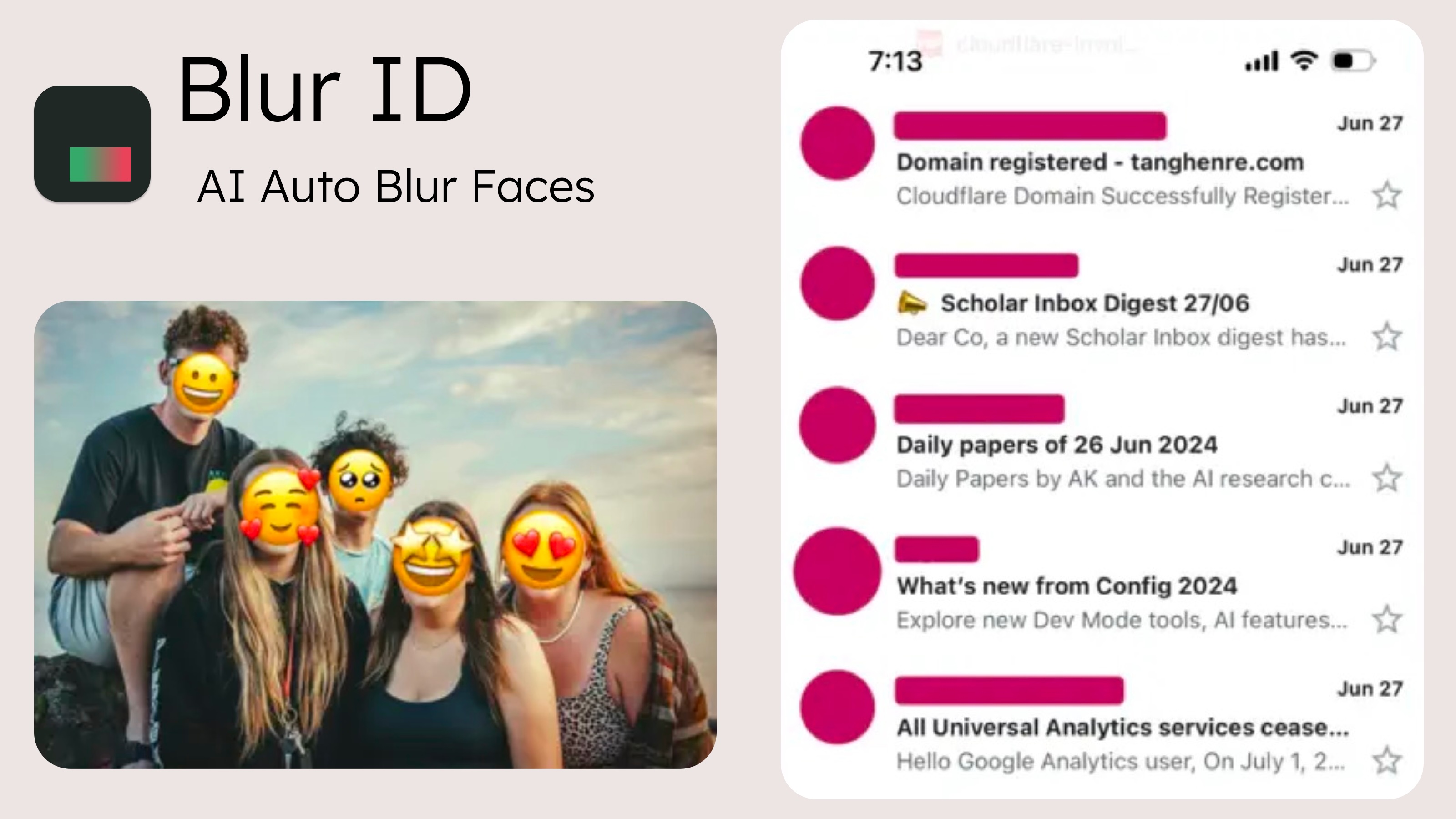
If you share screenshots or group photos, you need a way to hide faces fast — without uploading the image to some server. Here's an honest comparison of the five realistic options in 2026, including what each one can't do.
Quick comparison
| Tool | Auto face detection | Blurs text & usernames | Offline | Price |
|---|---|---|---|---|
| Blur ID (iOS) | Yes — all faces in one tap | Yes, automatic | Yes, 100% on-device | Free with watermark; $0.99/mo, $4.99/yr or $7.99 lifetime |
| Signal (iOS/Android) | Yes — within the messenger | No — faces only, manual for the rest | Yes | Free |
| Apple Markup (iOS) | No — draw by hand | Manual solid cover only | Yes | Free |
| Apple Clean Up (iOS 18.1+) | Removes people, doesn't blur | No | Partially (on-device models) | Free on supported iPhones |
| Online blur websites | Varies | Varies | Often no — may upload | Free |
1. Blur ID — best for automatic, private blurring
Blur ID is a dedicated app to blur faces in photos on iPhone. Import an image and its AI immediately finds every face — including the small profile avatars in chat screenshots that manual editing tends to miss — plus usernames and sensitive text, and blurs them all at once. You can tap to un-blur specific faces, switch to pixelation or emoji covers, and export a clean copy.
Two things set it apart. First, detection covers text and avatars, not just faces, which matters for screenshots. Second, everything runs on-device: no upload, no account, works in airplane mode. It's free to try (watermarked exports); premium starts at $0.99/month with a $7.99 lifetime option. iOS 17+ only — there's no Android version, which is its main limitation.
2. Signal — best free option if you already use it
The Signal messenger has a built-in blur tool in its photo editor: it auto-detects faces and lets you blur additional areas by hand, then you can save or send the result. It's free and processes on-device. The catches: you're working inside a messaging app rather than a photo tool, it only targets faces (usernames and text are manual), and the blur style is a single fixed effect.
3. Apple Markup — best for covering one face quickly
Built into iOS: Photos → Edit → Markup, then draw a 100%-opacity shape over the face. No install, no cost. But it's fully manual, easy to get wrong (semi-transparent ink leaks what's underneath), and impractical for group photos or busy screenshots.
4. Apple Clean Up — when removing beats blurring
On Apple Intelligence iPhones (15 Pro and later, iOS 18.1+), Clean Up erases a person and reconstructs the background. Great when you want no visible censoring at all; wrong tool when the person should stay in the image, and results vary on complex backgrounds.
5. Online blur websites — convenient, but check where the pixels go
Browser tools need no install and work on any platform. The risk is structural: if the site processes images server-side, your sensitive photo has now been uploaded — exactly what you were trying to avoid. Some tools state that processing happens locally in the browser; verify before using one for anything sensitive, and skip them for IDs, financial data or photos of children.
Which should you choose?
- Lots of screenshots, chat logs, or group photos: Blur ID — automation across faces and text is the whole game.
- Occasional single face, zero budget: Signal's blur tool or Markup.
- Person should disappear entirely: Apple Clean Up.
- Non-sensitive image, no iPhone at hand: a reputable online tool, ideally one with in-browser processing.